

Support dynamic delivery solution in SDK
IAPMiniProgram SDK designs a unified module dynamic delivery solution that allows the super app to download and install the required modules per your requirements to run applications.
For example, in order to enhance the performance and rendering capability of mini programs, MYWeb module/dynamic feature is supported, the Google map SDK dynamic integration is supported, and so on.
Prerequisite
Make sure that the following dynamic module names are used correctly according to the different features:
Feature | Dynamic module name | More information |
| ||
| ||
| Note: When either the video or multi-media component is dynamically integrated, you cannot integrate both components simultaneously. | |
| ||
| ||
| ||
|
Step 1. Create the dynamic module
- In your project, click Create new module > Dynamic Feature to start creating a new module. (see the following figure).
- Choose the Base Application Module properly.
- Fill in the module name correctly according to the different features. Take the following components as examples:
- For MYWeb feature

- For Google Maps SDK integration
- For Video component integration
- For Multi-media component integration
- For other components integration, check the module name and fill in properly (Take the figures above as references)
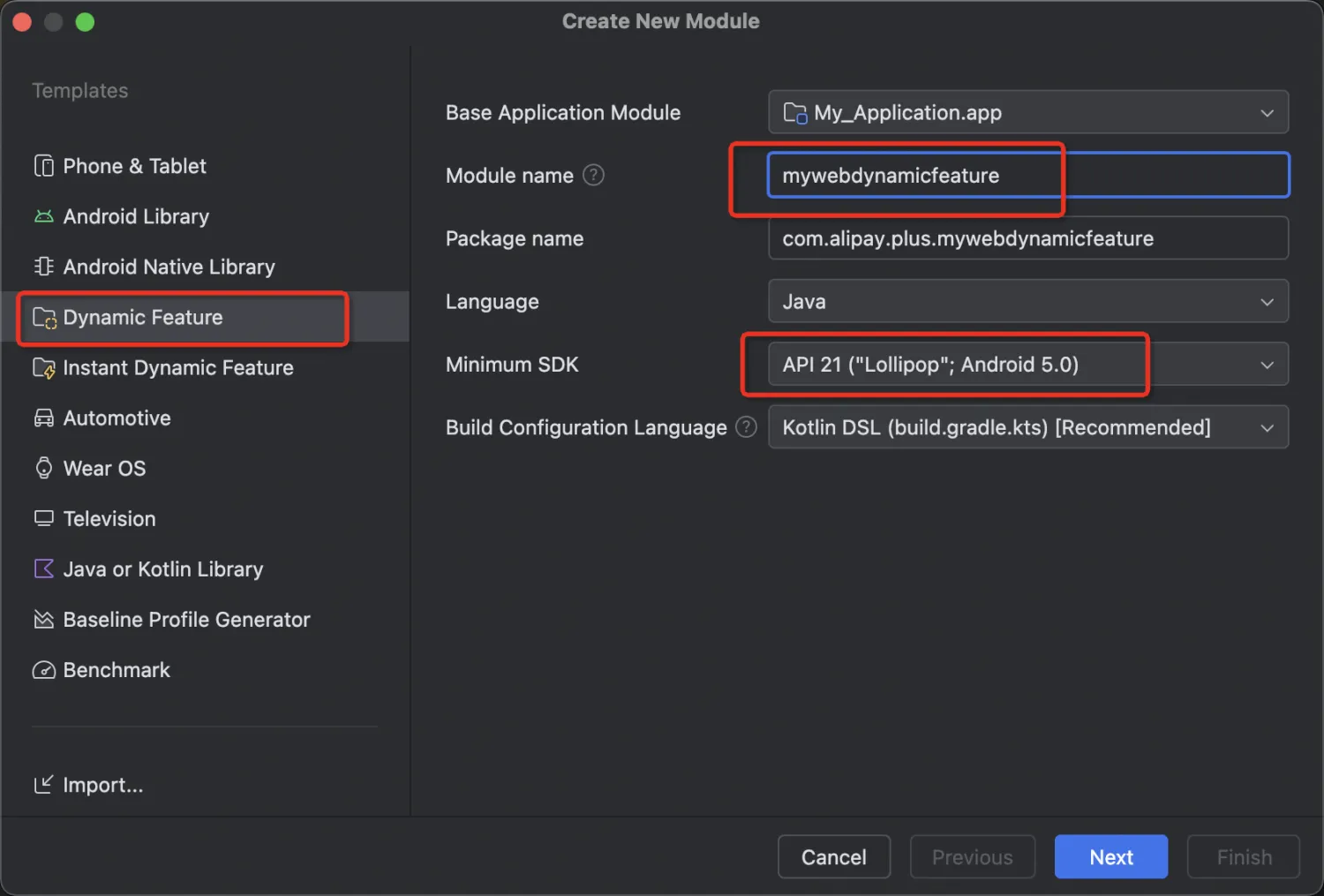

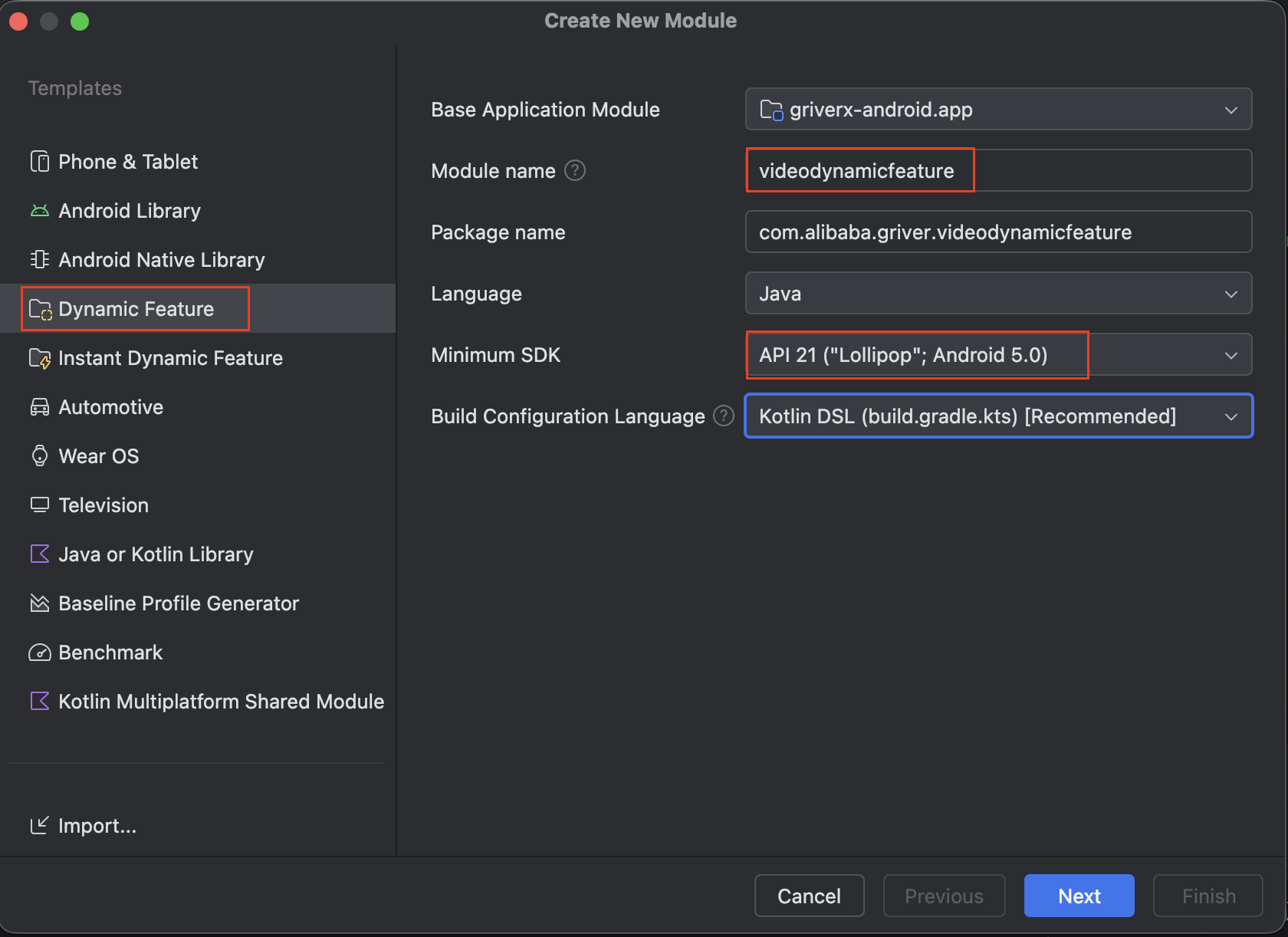
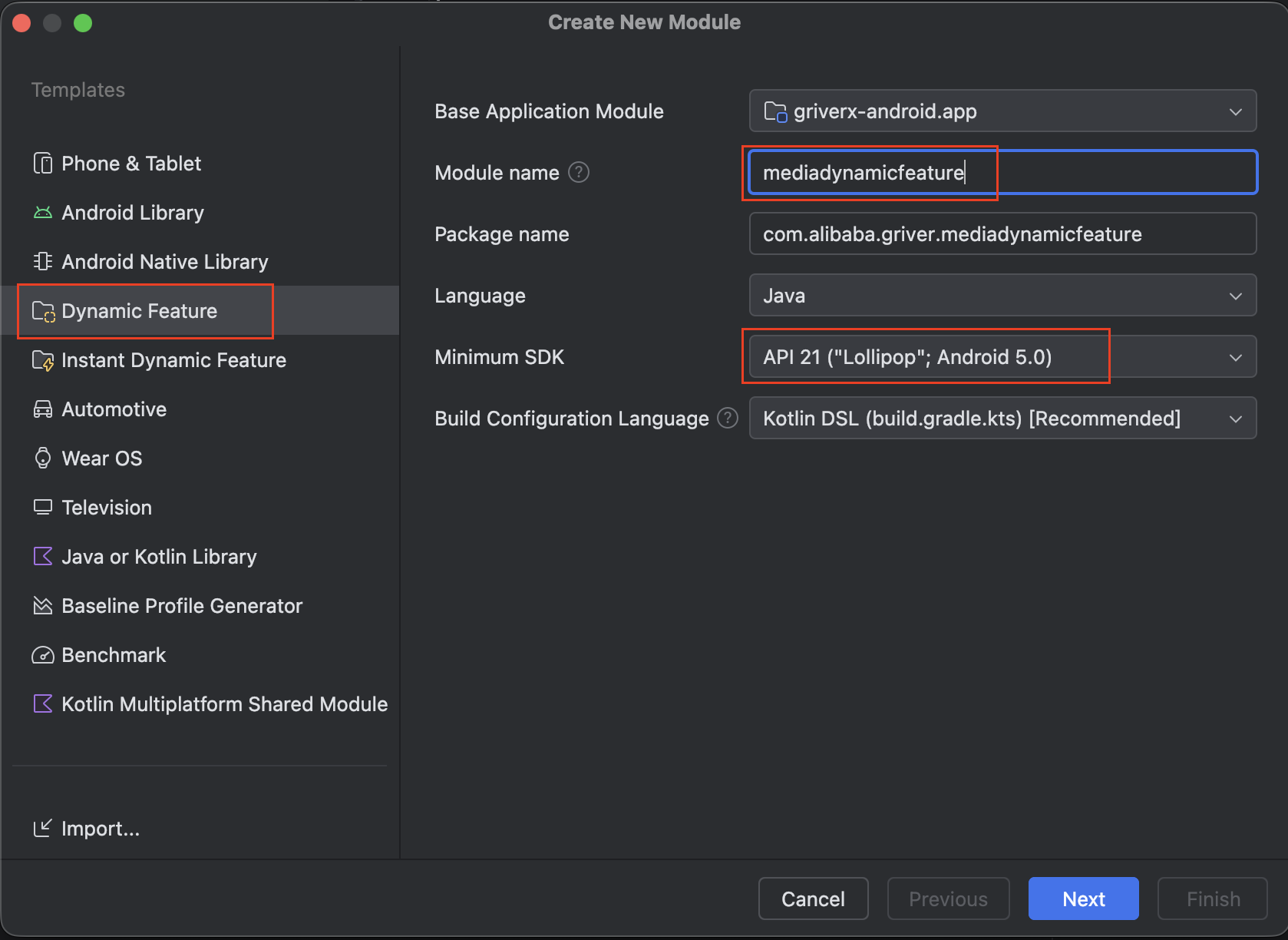
- Fill in the Module title according to the different component features. Take the following components as examples:
- For MYWeb feature, by default, "MyWeb Dynamic Feature" is used .
- For Google Maps SDK integration, choose the "Map Dynamic Feature".
- For Video component integration, choose the "Video Dynamic Feature".
- For Multi-media component integration, choose the "Media Dynamic Feature".
- For other components integration, choose the module title properly (Take the figures above as references)
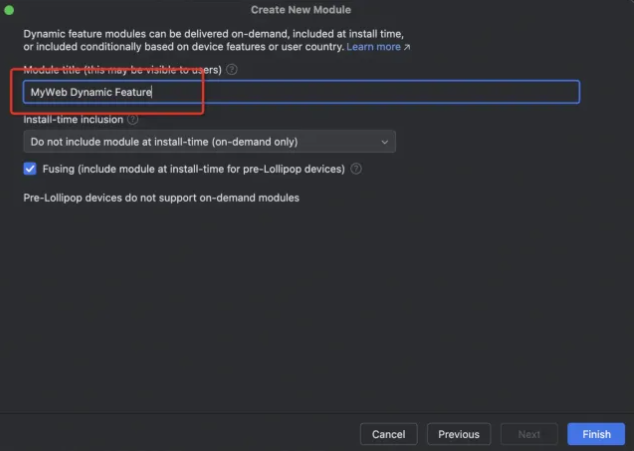

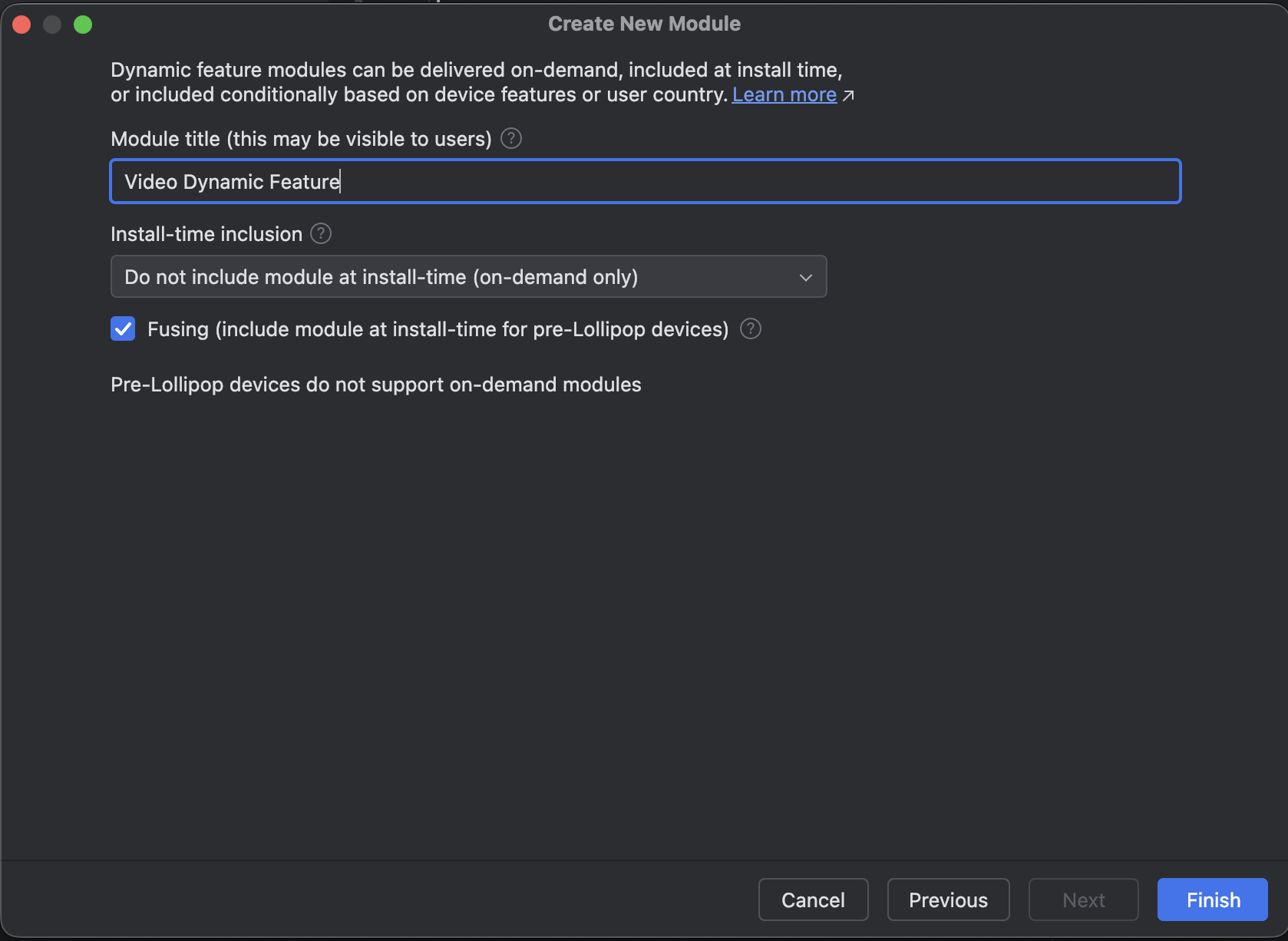
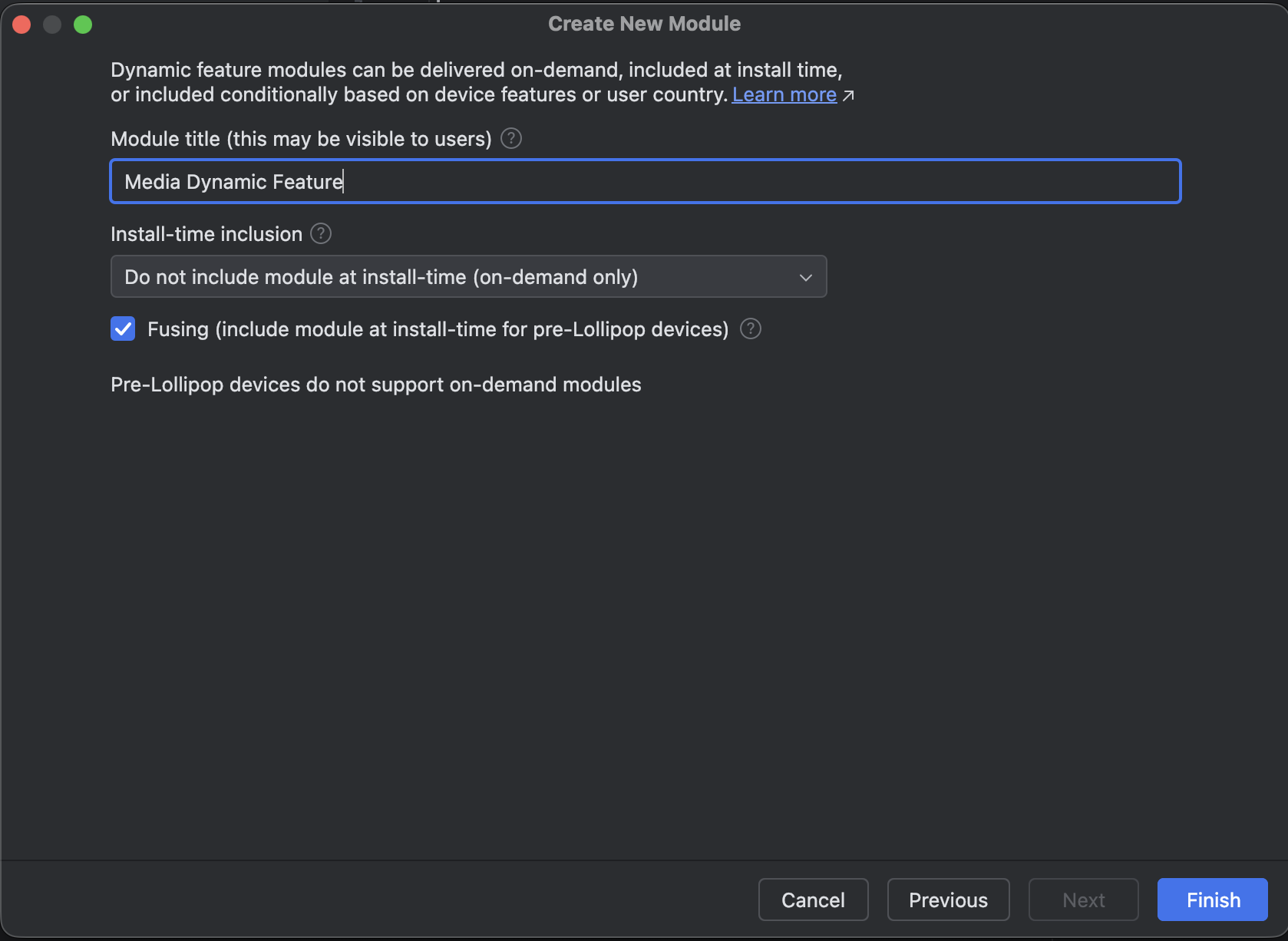
- Note: In the Install-time inclusion drop-down list, choose (on-demand only).
- Click Finish to finish creating the module.
Step 2. Confirm the correctness of the AndroidManifest file
The default configurations in the AndroidManifest file are generated by the system. You need to check and confirm the correctness of the file.
Note: change the dist:title property value according to the different features.
Feature | Module name |
MYWeb feature |
|
Google Maps SDK integration |
|
Video component integration |
|
Multi-media component integration |
|
Inspection component integration |
|
Lottie component integration |
|
Bluetooth component integration |
|
Code sample:
<?xml version="1.0" encoding="utf-8"?>
<manifest xmlns:android="http://schemas.android.com/apk/res/android"
  xmlns:dist="http://schemas.android.com/apk/distribution">

  <dist:module
    dist:instant="false"
    dist:title="@string/title_mywebdynamicfeature">
    <dist:delivery>
      <dist:on-demand />
    </dist:delivery>
    <dist:fusing dist:include="true" />
  </dist:module>
</manifest>
Step 3. Confirm the dynamic repository is imported into the main module
- In the build.gradle file of the project app, the system generates the following code by default according to the different feature/module name. This is because that you choose the Base Application Module in the previous Step 1.
- For MYWeb feature
android {
    dynamicFeatures = [':mywebdynamicfeature']
}- For Google Maps SDK integration
android {
    dynamicFeatures = [':mapdynamicfeature']
}- For Video component integration
android {
    dynamicFeatures = [':videodynamicfeature']
}- For Multi-media component integration
android {
    dynamicFeatures = [':mediadynamicfeature']
}- For Inspection component integration
android {
    dynamicFeatures = [':inspectiondynamicfeature']
}- For Lottie component integration
android {
    dynamicFeatures = [':lottiedynamicfeature']
}- For Bluetooth integration
android {
    dynamicFeatures = [':bluetoothdynamicfeature']
}- In order to make the dynamic module take effects, must add the following codes in the build.gradle file:
android {
    packagingOptions {
        jniLibs {
            useLegacyPackaging true
        }
    }
}- In the AndroidManifest.xml file of the project app, add the following code according to the different features.
- For MYWeb feature
<meta-data
  android:name="com.alibaba.griver.dynamic.modules"
android:value="mywebdynamicfeature" />- For Google Maps SDK integration
<meta-data
  android:name="com.alibaba.griver.dynamic.modules"
android:value="mapdynamicfeature" />- For Video component integration
<meta-data
  android:name="com.alibaba.griver.dynamic.modules"
android:value="videodynamicfeature" />- For Multi-media component integration
<meta-data
  android:name="com.alibaba.griver.dynamic.modules"
android:value="mediadynamicfeature" />- For Inspection component integration
<meta-data
  android:name="com.alibaba.griver.dynamic.modules"
android:value="inspectiondynamicfeature" />- For Lottie component integration
<meta-data
  android:name="com.alibaba.griver.dynamic.modules"
android:value="lottiedynamicfeature" />- For Bluetooth integration
<meta-data
  android:name="com.alibaba.griver.dynamic.modules"
  android:value="bluetoothdynamicfeature" />
Step 4. Import the dependency to support the dynamic feature
Import the dependency in the following files:
- In the build.gradle file of the project app, add the following codes to import the
iapminiprogram-dynamic-featuredependency.Note: Check the latestiapminiprogram_versionversion in the Android Release Notes.
dependencies {
    implementation "com.alipay.plus.android:iapminiprogram-dynamic-feature:${iapminiprogram_version}"
}- In the build.gradle file of the dynamic module, add the following codes according to the different features.
- For MYWeb feature, import the
iapminiprogram-mywebdependency.
dependencies {
    implementation "com.alipay.plus.android:iapminiprogram-myweb:${iapminiprogram_version}"
}- For Google Maps SDK integration, import the
iapminiprogram-gmultimapdependency.
dependencies {
    implementation "com.alipay.plus.android:iapminiprogram-gmultimap:${iapminiprogram_version}"
}- For video component integration, import the
iapminiprogram-videodependency.
dependencies {
    implementation "com.alipay.plus.android:iapminiprogram-video:${iapminiprogram_version}"
}- For Multi-media component integration, import the
iapminiprogram-mediadependency.
dependencies {
    implementation "com.alipay.plus.android:iapminiprogram-media:${iapminiprogram_version}"
}- For Inspection component integration, import the
iapminiprogram-inspectiondependency.
dependencies {
    implementation "com.alipay.plus.android:iapminiprogram-inspection:${iapminiprogram_version}"
}- For Lottie component integration, import the
iapminiprogram-lottiedependency.
dependencies {
    implementation "com.alipay.plus.android:iapminiprogram-lottie:${iapminiprogram_version}"
}- For Bluetooth integration, import the
iapminiprogram-bluetoothdependency.
dependencies {
    implementation "com.alipay.plus.android:iapminiprogram-bluetooth:${iapminiprogram_version}"
}
Step 5. Configure to use the SplitCompat tool
In order to use the SplitCompat tool, need to finish the following configurations:
- In the build.gradle file of the project app, add the following codes to import dependencies accordingly:
// In your app’s build.gradle file:
...
dependencies {
    // This dependency is downloaded from the Google’s Maven repository.
    // So, make sure you also include that repository in your project's build.gradle file.
    implementation 'com.google.android.play:feature-delivery:2.1.0'

    // For Kotlin users, also add the Kotlin extensions library for Play Feature Delivery:
    implementation 'com.google.android.play:feature-delivery-ktx:2.1.0'
    ...
}- Turn on the
SplitCompatin your application based on the following different cases.
Case | To do |
If you have a customized application | Add the following codes in the attachBaseContext() function of your current application: copy |
If you do not have a customized application | Define a new application as the following codes, which inherits from copy |
Step 6. (Optional) Optimize the dynamic module download experience
If you want to optimize the dynamic module download experience, for example whether a custom dialog box is displayed to explain the reason for downloading, knowing the download status, and so on, to achieve these experiences, use the GriverDynamicFeatureExtension interface.